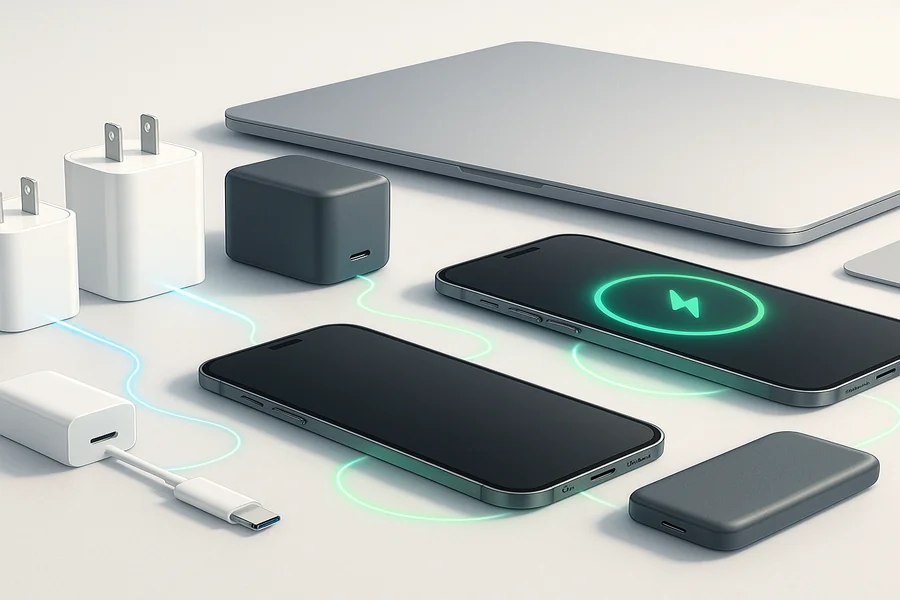
Modern laptops are sleeker and more powerful than ever — but they also rely on a single USB-C port for nearly everything: charging, data transfer, and video output. For many users, this shift brings both convenience and confusion.
How do you choose the right USB-C charger for laptop? And how do you pair it with a docking station with power delivery that meets your daily needs?
This comprehensive guide explains everything you need to know before buying. From understanding power ratings and ports to comparing real-world scenarios, you’ll learn how to create an efficient setup that keeps your laptop powered and your workspace organized.
1. Why You Need Both a USB-C Charger and a Docking Station
Today’s professionals often move between offices, homes, and co-working spaces. Relying on a single charger or built-in ports simply isn’t practical.
Common pain points include:
- A single USB-C port shared between charging and peripherals.
- Slow charging due to underpowered adapters.
- Messy desks filled with tangled cables and dongles.
- Limited connectivity for external displays or accessories.
Combining a usb-c fast charger and a usb-c docking station for laptop solves these issues.
- The charger ensures you always have the right power source, wherever you are.
- The docking station expands your connectivity and streamlines your workflow.
Together, they form the backbone of a high-efficiency setup — powerful, portable, and reliable.
2. Understanding USB-C Chargers: More Than Just Power
How USB-C Power Delivery Works
Modern USB-C chargers use Power Delivery (PD) technology, which automatically adjusts voltage and current to the device’s needs — from smartphones to high-performance laptops.
PD 3.1 and PPS (Programmable Power Supply) protocols further enhance efficiency and reduce heat, extending battery life.
Choosing the Right Wattage
Selecting a charger with proper output is critical. Undersized chargers can cause slow charging or battery wear over time.
| Device Type | Recommended Power | Practical Notes |
| Ultrabook / Light Laptop | 45–65W | Ideal for light office work |
| Gaming or Creative Laptop | 90–100W+ | Needed for full performance |
| Tablet / Smartphone | 20–30W | Enough for daily use |
| Multi-Device Charging | ≥100W | Supports simultaneous charging |
Pro Tip: Always check your laptop’s original adapter rating. For instance, if it’s 65W, opt for a usb-c pd charger with power delivery rated at 65W or higher to ensure optimal speed.
Smart Usage Practices
- Avoid running power-hungry apps while charging — it slows the process.
- Use E-Mark certified cables to prevent voltage drop.
- Keep the charger in a ventilated area, especially during long sessions.
- Foldable or interchangeable plug designs are ideal for travelers.
3. Docking Stations: The Core of a Connected Workspace
A docking station is more than a hub of ports — it’s a productivity booster. Whether you’re at home, in an office, or traveling, it can turn a single USB-C connection into a full desktop setup, as noted by driftwoodboatsllc.
What a Good Docking Station Should Offer
- Multi-port expansion: USB-A, USB-C, HDMI, SD card reader, and Ethernet.
- Power Delivery pass-through: Charge your laptop while using other ports.
- High-resolution display output: Dual monitors or 4K screens via HDMI or DisplayPort.
- Reliable data transfer: USB 3.1 or higher for faster file access.
Recommended Technical Standards
| Feature | Suggested Specification | Why It Matters |
| PD Power Output | 65–100W | Keeps laptop fully powered while connected |
| HDMI/DP Output | 4K@60Hz | Enables sharp and smooth visuals |
| USB Ports | ≥3, at least one USB-C | Supports multi-device workflow |
| Ethernet Port | Gigabit RJ45 | Ensures stable video conferencing |
| OS Compatibility | Windows / macOS / iPadOS | Broad adaptability |
Practical Docking Tips
- Choose a usb-c docking station with power delivery to prevent laptop battery drain.
- For multi-monitor setups, ensure your dock supports HDMI 2.0 or DisplayPort 1.4.
- If you work long hours, opt for one with aluminum housing — better heat dissipation.
- Keep your desk organized using cable clips or stands for a cleaner workspace.
4. Matching the Right USB-C Charger and Docking Station
Selecting compatible devices ensures stability and performance. The goal is to balance portability, power, and functionality.
Best Setups by Scenario
| Scenario | Recommended Combination | Why It Works |
| Home / Office Setup | 90W USB-C PD Charger + Multi-port Dock | Stable power and multiple device connections |
| Remote or Hybrid Work | 65W GaN Charger + Compact Dock | Lightweight and easy to transport |
| Frequent Travel | Dual USB-C Charger + Portable Dock | Efficient for both laptop and phone charging |
| Creative or IT Work | 100W Charger + Dual-Display Dock | Supports high-power and data-intensive workflows |
Usage Techniques
- Connect the docking station’s PD input to the high-power USB-C port on your charger.
- Recharge your phone or tablet through the dock’s extra USB-C or USB-A ports.
- Avoid overloading — don’t run two external displays and charge multiple devices simultaneously if the dock’s total power output is limited.
- If you often switch between workstations, use color-coded cables for quick setup.
5. Buying Checklist and Safety Guidelines
Pre-Purchase Checklist
- Verify your laptop’s wattage requirement (usually printed on the charger).
- Ensure both devices support PD 3.0 or 3.1 and PPS protocols.
- Look for E-Mark or USB-IF certification on cables.
- Docking station should feature a dedicated PD-IN port and at least 100W total output.
- Check for CE, FCC, and RoHS compliance for electrical safety.
Common Mistakes to Avoid
- Assuming all USB-C ports support charging — many only handle data.
- Using a 45W charger on a laptop that requires 100W (it will slowly discharge).
- Overheating from cheap, non-GaN chargers.
- Poor performance when using low-quality USB-C to HDMI adapters.
Safety and Maintenance Tips
- Don’t operate the docking station under full load for extended hours; give it cooling breaks.
- Clean ports occasionally to prevent dust build-up.
- Avoid leaving your laptop charging overnight unattended.
- For frequent travelers, use a surge-protected extension cable to safeguard devices.
6. Comparing Different User Types: Which Setup Fits You
| User Type | Recommended USB-C Charger | Recommended Docking Station | Key Focus |
| Office Worker | 65–90W PD Charger | Multi-port Dock (USB-A/C, HDMI) | Balanced power & connectivity |
| Creative Professional | ≥100W PD Charger | Dual-Display Dock (HDMI + DP) | Video output & file transfer speed |
| Business Traveler | 45–65W GaN Charger | Portable Dock (compact, lightweight) | Mobility & multi-device support |
| Student / Casual User | 30–45W Charger | Simple USB-C Dock | Affordability & ease of use |
This comparison helps you find the right balance between portability and power. Remember — bigger isn’t always better; match your setup to your actual needs.
7. Maximizing Charging Efficiency and Workspace Safety
- Optimize your layout: Place your docking station where ventilation is best.
- Use quality accessories: Certified cables and adapters maintain signal integrity.
- Avoid daisy-chaining: Connecting multiple hubs or docks can reduce charging efficiency.
- Manage cable flow: Use short cables to minimize clutter and voltage drop.
- Keep your devices updated: Firmware updates for docking stations can fix compatibility issues.
These simple steps ensure your usb-c charger and docking station combo performs reliably for years.
8. The Future of USB-C Charging and Docking Stations
Technology is evolving rapidly. The next generation of usb-c chargers and docking stations will blur the line between power and connectivity.
Emerging trends include:
- GaN 4.0 technology: Higher efficiency, smaller size, and cooler operation.
- Smart power allocation: Docks that automatically prioritize high-demand devices.
- Universal charging ecosystems: One charger for laptop, tablet, and phone alike.
- Wireless docking: Wi-Fi 7 and wireless video standards enabling cable-free setups.
- Sustainable materials: Recyclable shells and low-energy standby modes.
In short, the future is compact, intelligent, and eco-conscious — with unified accessories for all your tech devices.
9. Conclusion: Build a Smarter, Simpler Laptop Power System
Choosing the right usb-c charger and docking station for laptop isn’t just about wattage or port count — it’s about creating a balanced power ecosystem.
A USB-C charger ensures you always have reliable, efficient energy.
A docking station gives you the freedom to connect everything — external displays, storage devices, or networks — with a single cable.
Together, they transform how you work and travel: fast charging, tidy connectivity, and complete flexibility.
When selecting your combo, prioritize power compatibility, protocol support, and build quality. For more creative ideas and inspiration, you can also explore Marathi Birthday for a different cultural perspective.
The result? A workspace that’s not only efficient but future-ready — keeping you powered, productive, and connected anywhere you go.